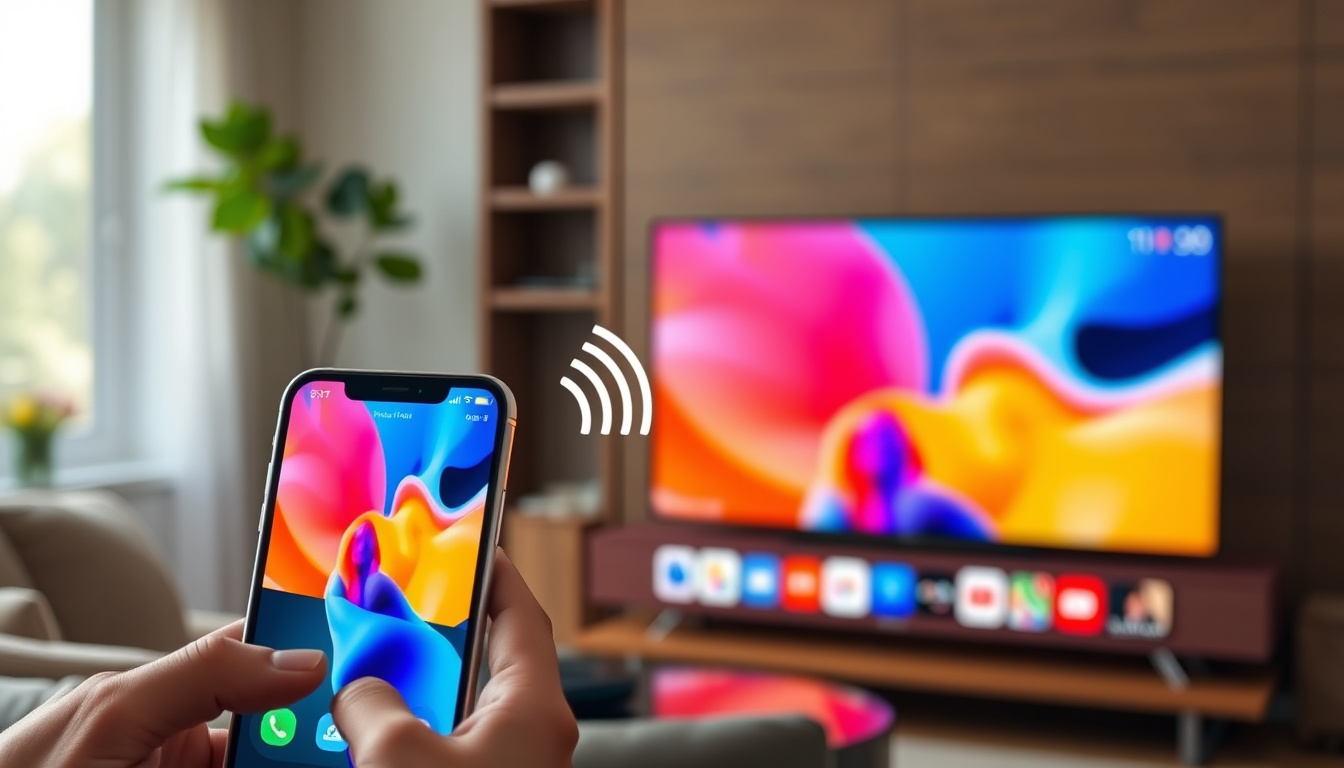
Picture this: you’ve found the perfect recipe video, the vacation photo your friend needs to see, or the game highlight your family has been asking about — and you want it on the big screen. Getting your iPhone onto your TV is simpler than most people realize, and you probably already have everything you need in your pocket and your living room.
Primary Method: AirPlay · Wi-Fi Requirement: Same network as TV · Compatible TVs: Apple TV, AirPlay-enabled smart TVs · Control Center Access: Swipe down from top-right on iPhone X+
Quick snapshot
- AirPlay requires same Wi-Fi per Apple Support
- Control Center swipe method standard since iPhone X (Apple Support)
- Direct cable connection without adapter specifics
- Complete model compatibility for every TV brand
- AirPlay 2 arrived 2018, enabling native smart TV support
- iOS 11 minimum requirement introduced same year
- Third-party apps bridge gap for non-AirPlay TVs
- Hardware solutions offer wired alternatives
Three data points matter most when getting started: the access point on your iPhone, the exact menu path on your specific TV, and the network they share.
| Step | Action | Source |
|---|---|---|
| Access Method | Swipe down from top-right corner (iPhone X+) | Apple Support |
| Key Requirement | Same Wi-Fi network for iPhone and TV | Apple Support |
| Icon Location | Screen Mirroring in Control Center | Apple Support |
| Samsung AirPlay | Menu → Connection → Apple AirPlay Settings | Samsung Support |
| LG AirPlay | Input → Home Dashboard → AirPlay & HomeKit | YouTube Guide |
| Sony AirPlay | System Menu → Apple AirPlay and HomeKit Settings | YouTube Guide |
| TV Compatibility | Smart TVs from 2018 onward support AirPlay natively | YouTube Guide |
How can I mirror my iPhone to my TV?
Mirroring your iPhone to a TV means your television displays everything on your phone screen — photos, apps, web pages, anything. This is different from casting, where only content from a specific app appears while your phone acts as a remote control.
Access Control Center
- iPhone X and later: Swipe down from the top-right corner of your screen
- iPhone 8 and earlier: Swipe up from the bottom of your screen
Select Screen Mirroring
Look for the Screen Mirroring icon — it looks like two overlapping rectangles. Tap it, and your iPhone scans for available AirPlay devices on the same Wi-Fi network.
Choose your TV
When your TV appears in the list, tap its name. If a PIN appears on your TV screen, enter it on your iPhone when prompted. The connection establishes within seconds, and whatever is on your iPhone fills the television display.
How to screen mirror iPhone to TV using AirPlay?
AirPlay is Apple’s wireless streaming protocol, and it’s the built-in solution that works across Apple TV, Samsung, LG, Sony, and other smart TVs released since 2018. No extra apps or cables required.
Open Control Center
On iPhone X or later, access Control Center by swiping down from the top-right corner. On older models, swipe up from the bottom edge of your screen.
Tap Screen Mirroring
The Screen Mirroring icon resembles two overlapping screens. Apple Support confirms that both your iPhone and TV must connect to the same Wi-Fi network for AirPlay to discover and connect to the television.
Select AirPlay-compatible TV
Most smart TVs from 2018 onward support AirPlay natively, including models from Samsung, LG, and Sony. Once your TV is enabled for AirPlay (see brand-specific instructions below), it appears in the list. Tap the TV name to begin mirroring.
5 GHz Wi-Fi delivers smoother streaming than 2.4 GHz for screen mirroring. AirPlay 2, introduced in 2018, added multi-room audio and improved mirroring stability — both features your 2018-or-later smart TV likely supports.
Why won’t my iPhone show my TV on screen mirroring?
When your TV fails to appear in the Screen Mirroring list, the problem almost always traces back to one of three causes: network mismatch, software issues, or TV settings that haven’t been enabled yet.
Check Wi-Fi connection
Your iPhone and TV must be on the same Wi-Fi network. This is non-negotiable — AirPlay doesn’t work across different networks or subnets. If you’re on a hotel Wi-Fi or corporate network with device isolation enabled, AirPlay may be blocked entirely.
Update iOS and TV firmware
Outdated software prevents connections. Ensure your iPhone runs iOS 11 or later, and check your TV for firmware updates through its settings menu. AirBeamTV’s troubleshooting guide notes that outdated TV firmware is a common reason AirPlay connections fail.
Restart devices
Power cycling both your iPhone and TV clears temporary glitches that interfere with discovery. Unplug the TV for 30 seconds, then power it back on while restarting your iPhone.
VPNs and firewalls can block peer-to-peer connections that AirPlay relies on. If you use a VPN on your iPhone, disable it temporarily during the mirroring session. The same applies if your router has client isolation features enabled.
How to screen mirror iPhone to Samsung TV?
Samsung smart TVs with AirPlay 2 support offer the smoothest experience for iPhone users, but AirPlay must first be enabled in the TV’s settings before your iPhone can discover it.
Enable AirPlay on Samsung
Press the home button on your Samsung remote, then navigate to Menu → Settings → All Settings → Connection → Apple AirPlay Settings. Toggle AirPlay on, and optionally enable “Require Code” for security if prompted.
Use AirPlay 2 if supported
Samsung Support confirms that once enabled, your Samsung TV appears in the iPhone’s Screen Mirroring list automatically. Samsung TVs with AirPlay 2 also support the Cast icon within individual apps like Netflix — this is separate from screen mirroring, which mirrors your entire phone screen.
Troubleshoot detection issues
If your Samsung TV doesn’t appear, restart the TV, ensure firmware is updated, and verify both devices share the same Wi-Fi network. Some Samsung models released before 2018 may require a firmware update to gain AirPlay support.
Samsung TVs use “Smart View” for their own casting protocol, which is separate from AirPlay. Don’t confuse the two — Smart View handles Samsung-specific casting, while AirPlay handles iPhone mirroring.
The implication is that Samsung users should ignore Smart View when their goal is native iPhone mirroring.
Where is the screen mirroring button on my iPhone?
The Screen Mirroring button lives inside Control Center, Apple’s quick-settings panel. Its location hasn’t changed, but the gesture to open it varies depending on your iPhone model.
iPhone X and later
Swipe down from the top-right corner of your screen. Control Center slides down, and the Screen Mirroring icon sits among the network and media controls — it resembles two overlapping rectangles.
Older iPhones
Swipe up from the bottom of your screen to reveal Control Center. The Screen Mirroring icon appears in the same position among the toggles.
Control Center customization
If you don’t see the Screen Mirroring icon, it may have been removed from Control Center. Go to Settings → Control Center → Customize Controls, then tap the green plus icon next to “Screen Mirroring” to add it back.
AirPlay supports two modes: streaming specific video content, or mirroring your entire screen. Streaming video uses less power and keeps your phone usable; mirroring the whole screen drains battery faster but gives you full access to any app on the big display.
Alternatives for TVs without AirPlay
Not every TV supports AirPlay. Older models, budget smart TVs, and some non-smart televisions need hardware or software solutions to receive iPhone content.
Streaming devices
Apple TV, Roku, and Amazon Fire TV Stick all support AirPlay or equivalent casting. Connect the device to your TV’s HDMI port, and it becomes AirPlay-compatible.
Third-party apps
Apps like AirScreen, Replica, and DoCast add AirPlay functionality to compatible smart TVs. AirBeamTV offers apps that enable mirroring to virtually any smart TV, though some introduce slight latency compared to native AirPlay. These apps work without cables but require both devices on the same Wi-Fi network.
HDMI adapter
For a wired, zero-latency connection, use a Lightning Digital AV Adapter connected to your TV’s HDMI port. This method works regardless of Wi-Fi and doesn’t require any app — your iPhone recognizes the adapter automatically.
Upsides
- Free with iPhone — no extra apps needed for AirPlay TVs
- Wireless connection keeps your setup clean
- Works on Samsung, LG, Sony, and other 2018+ smart TVs natively
Downsides
- Both devices must share the same Wi-Fi network
- Corporate or hotel networks may block AirPlay
- Older TVs without AirPlay need extra hardware or apps
“Apple and Samsung make this a very easy process — the first thing you’ll want to do is make sure that your phone and TV are on the same Wi-Fi network.”
— YouTube Guide (Samsung demo video)
“As of 2025, most newer smart TVs support AirPlay natively, especially models from 2018 onward. If your TV isn’t showing up in AirPlay, you’re not doing anything wrong — AirPlay just isn’t compatible with every brand or Wi-Fi setup.”
— AirBeamTV (Troubleshooting guide)
Related reading: Waitrose Food to Order – Delivery Guide and Costs · All Her Fault Episodes – Complete Guide and Summaries
This process aligns closely with the complete wireless mirroring guide that details AirPlay steps for Samsung, LG, and Sony TVs plus troubleshooting.
Frequently asked questions
Can I connect my iPhone directly to my TV?
Yes — with a Lightning Digital AV Adapter, you can connect your iPhone directly to any TV with an HDMI port. This wired method requires no Wi-Fi and introduces no latency, making it ideal for presentations or gaming where wireless mirroring might lag.
How to screen mirror iPhone to TV for free?
AirPlay is free and built into every iPhone running iOS 11 or later. If your TV supports AirPlay natively (2018+ Samsung, LG, Sony, or Apple TV), mirroring costs nothing. No subscription, no app purchase, no cables — just Wi-Fi and a few taps in Control Center.
Why is screen mirroring not picking up TV?
The most common reasons are: your iPhone and TV are on different Wi-Fi networks, AirPlay isn’t enabled on the TV, your TV’s firmware is outdated, or a VPN or network firewall is blocking the connection. Restart both devices, verify they’re on the same network, and update software on both sides.
How to screen mirror iPhone to TV LG?
Press the Input button on your LG remote, then select Home Dashboard. Choose AirPlay & HomeKit Settings, and enable AirPlay. Your LG TV will then appear in your iPhone’s Control Center under Screen Mirroring. LG smart TVs from 2018 onward typically support this feature.
How to screen mirror iPhone to TV Sony?
Press the HOME button on your Sony remote, then go to System Menu → Apple AirPlay and HomeKit Settings. Enable AirPlay — the default “Require Code” setting is “First Time Only” for security. Your Sony TV then becomes discoverable through your iPhone’s Screen Mirroring option.
Can I mirror my iPhone to a TV without Wi-Fi?
Yes — the Lightning Digital AV Adapter connects your iPhone to your TV via HDMI without any Wi-Fi network. This method bypasses wireless entirely, making it useful for venues with restricted networks or when AirPlay is blocked by corporate Wi-Fi settings.
Buyers with 2018-or-newer smart TVs gain the AirPlay path: swipe, tap, done. Those with older sets will find a $30–40 streaming stick or $50 adapter closes the gap — and both outperform wireless when presentation quality matters.
Related stories





Alex Nguyen is Editor-in-Chief at BuzzLayer, overseeing editorial standards, publication decisions and corrections.